 UnderBlue
 › Underwater photo and video guides
How to use a smartphone underwater housing
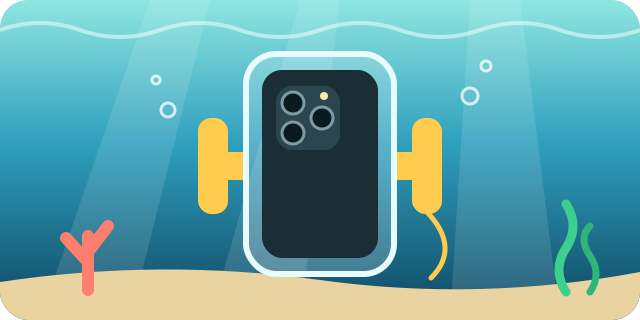
A housing lets you take your phone snorkeling and diving. It keeps the phone dry and lets you use its camera under water.
Here is how to choose one, check it and use it safely.
A water-resistant phone is not a dive camera
iPhone 15, iPhone 16 and iPhone 17 models are rated IP68: up to 6 meters for up to 30 minutes. But Apple advises against swimming with an iPhone or putting it under water on purpose.
Water resistance can also get weaker over time. Liquid damage is not covered by the warranty. Use a housing for any swim, snorkel or dive.
Source: About splash, water, and dust resistance of iPhone 7 and later (Apple Support)
Choose the right housing
- Check the depth rating. It must be deeper than your planned dive.
- Check that it fits your phone model and its camera layout.
- Check how you control the camera. A wet touch screen does not work well. Some housings use buttons and an app. Others let you touch the screen through a cover.
Test for leaks before every trip
- Clean the seal. Remove sand, hair and salt. Even one hair can let water in.
- Close the housing without the phone. Hold it under water in a sink or a pool for a few minutes.
- Dry the outside, open it and look for water. Put the phone in only when the inside stays dry.
Prepare the phone
- Charge the battery fully and free up storage.
- Take the phone out of its case if the housing needs a bare phone.
- Set Auto-Lock to a longer time, so the screen stays on.
- Close the housing in a cool, dry place, not in hot sun. This helps prevent fog. Add an anti-fog insert if the housing comes with one.
In the water
- Attach a wrist strap or a lanyard.
- Check for water inside during the first few minutes.
- If you see water, get the housing out of the water as soon as it is safe.
- Use the main 1× camera and turn off the flash. The flash can reflect inside the housing.
After the dive
Rinse the closed housing in fresh water. Dry it before you open it. Keep it out of direct sun.
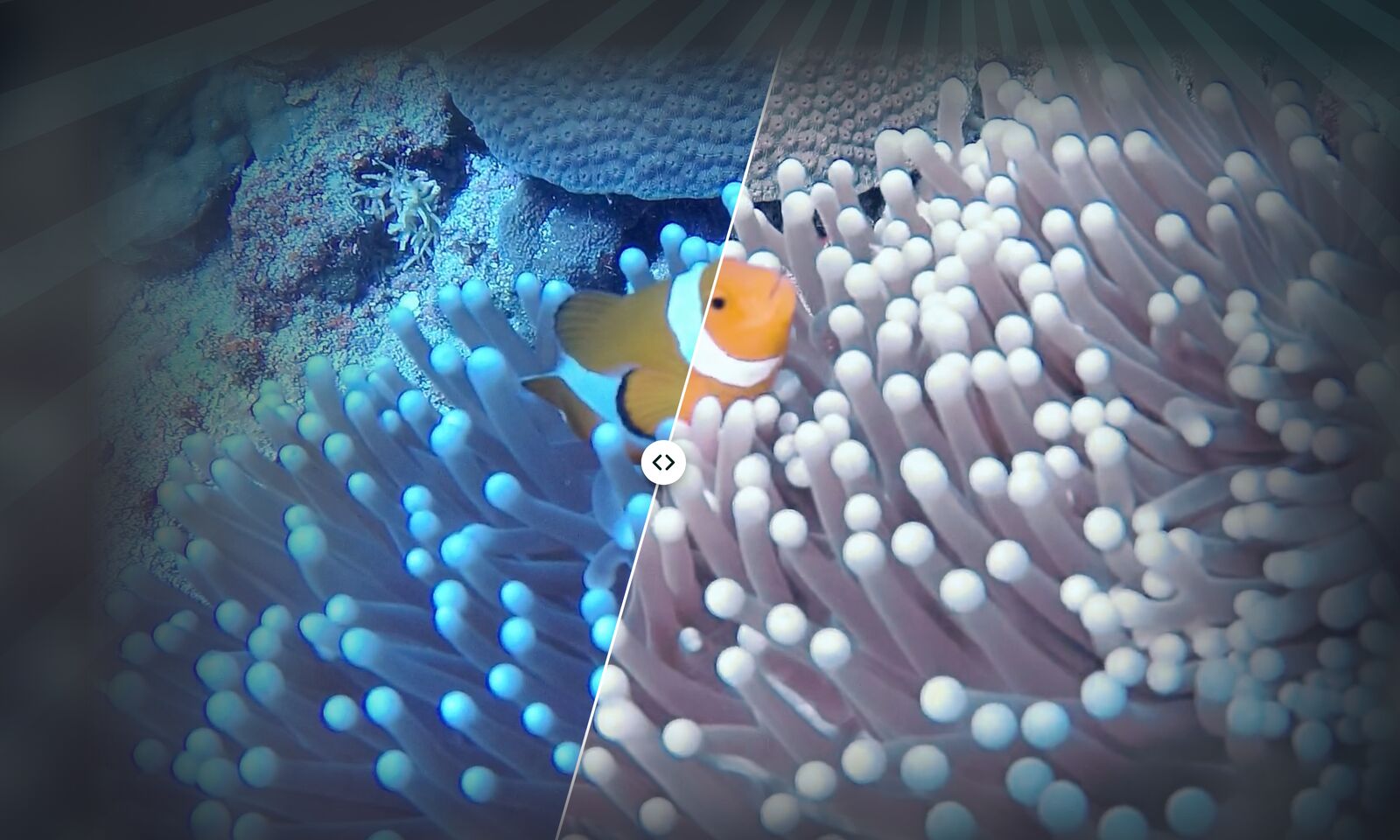
Fix the color with UnderBlue
Photos and videos from a housing still look blue or green. Open them in UnderBlue from your photo library, or share them to UnderBlue from the Photos app.
UnderBlue brings natural color back to underwater photos and videos on your iPhone. Pick a look, compare it with the original, and save. Processing stays on your iPhone, with no account and no upload. You can try it for free.