 UnderBlue
 › Underwater photo and video guides
Action camera under water: what to check before you dive
Action cameras are small, tough and easy to take diving. But one small mistake can flood the camera or spoil the footage.
Check these points before you get in the water.
Know the depth rating
Many action cameras are waterproof without a case, but only to a limited depth. Check the rating in your manual. For deeper dives, use the maker's dive housing.
Check every door and seal
- Close the battery door and the lens cover fully.
- Remove sand, hair and salt from the seals. Even one hair can let water in.
Stop fog before it starts
Fog forms when warm, damp air inside meets cold water. Close the housing in a cool, dry room. Use anti-fog inserts if you have them.
Battery and storage
- Cold water drains the battery faster. Start with a full battery.
- Start with an empty memory card, or one with plenty of space.
- Turn off Wi-Fi and the front screen if you do not need them.
Learn the buttons on land
Touch screens do not work well under water or inside a housing. Before the dive, learn how to start, stop and change modes with the buttons.
Get closer than you think
Action cameras have a very wide lens. Fish look small and far away unless you are close. Move closer than feels natural, but never touch marine life or coral.
Keep the camera attached to you
A small camera is easy to drop and hard to find. Use a wrist strap, a coil lanyard or a floating handle.
Use color filters with care
- A red filter adds back red in blue water.
- A magenta filter is for green water.
- In very shallow water, a filter can make the image too red or pink.
- Test your filter and color settings in shallow water first.
After the dive
Rinse the camera in fresh water, and dry it before you open any door. Then copy your clips to your iPhone with the camera maker's app, into Photos or Files.
Fix the color with UnderBlue
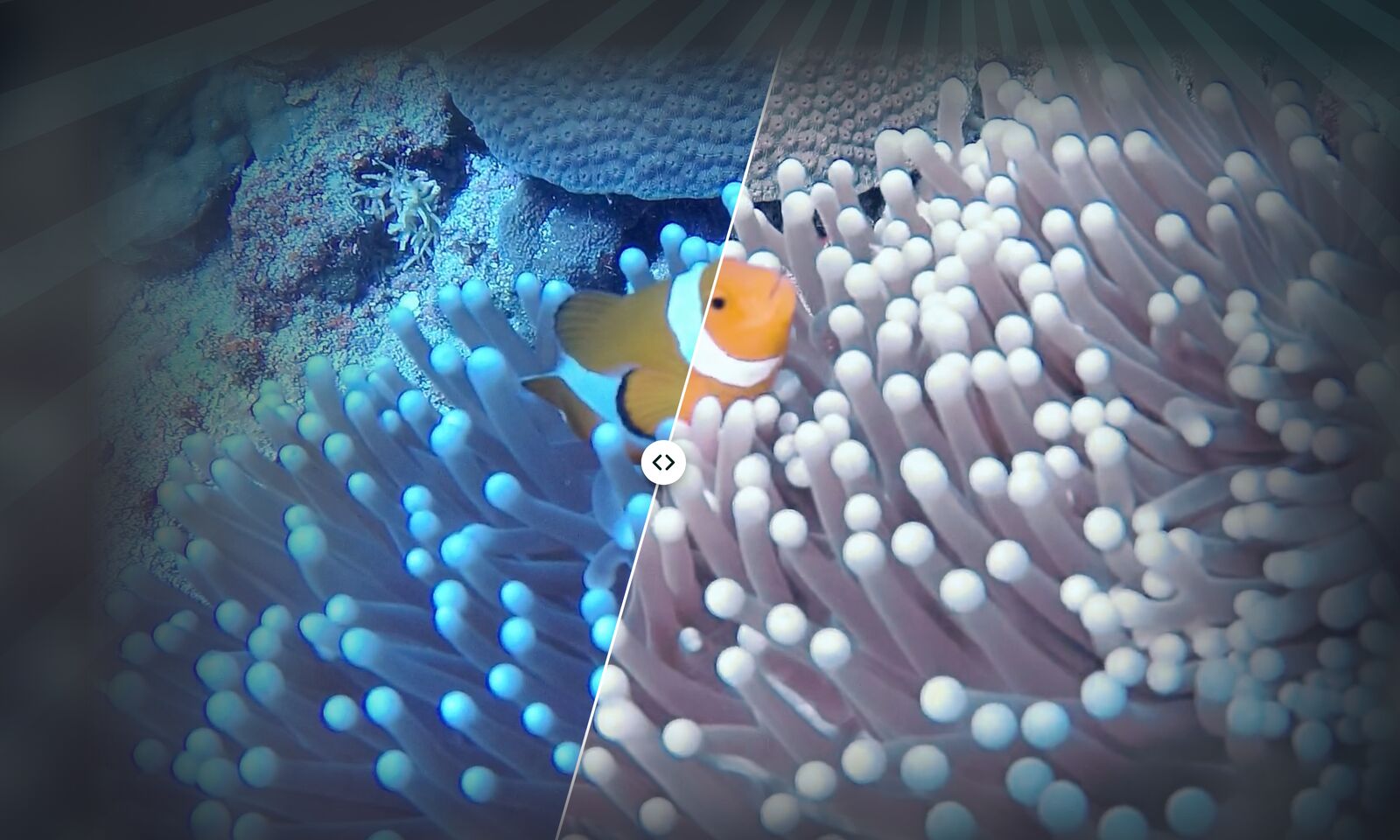
Action camera footage often looks blue or green. Copy the clip to your iPhone, then open it in UnderBlue from Photos or Files. UnderBlue keeps the color steady across the whole clip.
UnderBlue brings natural color back to underwater photos and videos on your iPhone. Pick a look, compare it with the original, and save. Processing stays on your iPhone, with no account and no upload. You can try it for free.